


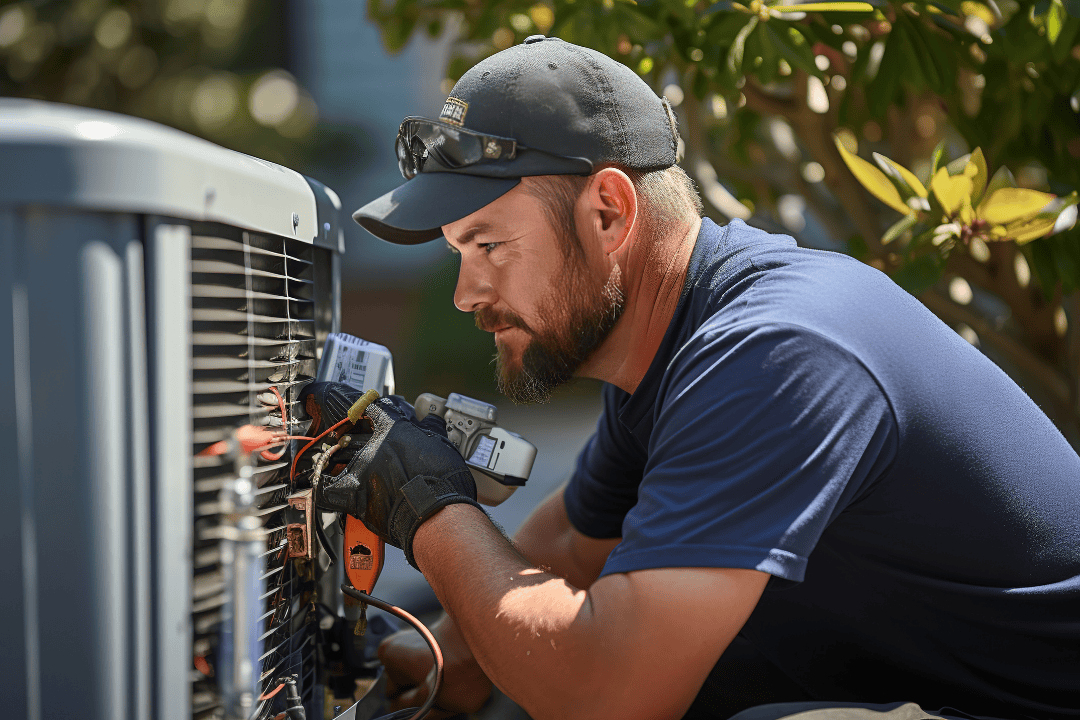
How Does Tap to Pay on iPhone Work? Complete Guide for Home Services Businesses
For home services professionals, every decision about payment processing comes down to three questions: Will it save me money? Will it make my life easier? And will my customers appreciate it?
If you're an iPhone user who provides plumbing, electrical, HVAC, landscaping, cleaning, or other home services, Tap to Pay on iPhone answers "yes" to all three. This technology transforms your iPhone into a complete payment terminal—no additional hardware required. But like any business tool, it's not the right fit for every situation.
Let's break down what Tap to Pay on iPhone actually is, how it benefits your home services business, and when it makes the most sense to use it.
Key Takeaways
- Tap to Pay on iPhone turns your iPhone into a payment terminal – Accept contactless payments without buying additional hardware
- Setup takes less than 5 minutes – Three easy ways to enable: at first login, from settings, or during your first transaction
- Qualifies for card-present processing rates – Save money with lower processing rates compared to manually keyed transactions
- Enterprise-grade security built in – End-to-end encryption, tokenization, and PCI compliance without extra effort
- Perfect for field technicians – Accept payment at the job site without needing a separate card reader
- Best for low to moderate transaction volumes – Ideal for businesses processing 1-50 transactions daily
- Complements other payment solutions – Many home services companies use Tap to Pay alongside card readers or office terminals for different situations
- Requires iPhone with iOS 17.4 or higher – Any iPhone model supporting iOS 17.4 works; iPads are not supported
- Works only with contactless payments – Accepts NFC-enabled cards and digital wallets, but cannot process chip inserts or magstripe swipes
- One-time Apple ID verification required – You'll need to login with your Apple ID, but it's OK if this is a different email address than your SwipeSimple email login
- Admin users enable for entire company – Once an admin sets it up, all team members can use it immediately
What You'll Learn in This Guide
In this comprehensive guide, we'll cover:
- What Tap to Pay on iPhone actually is – Clear definition and how it differs from other contactless payment methods
- Key benefits for your home services business – From cost savings to mobility advantages and security features
- When it makes sense (and when it doesn't) – Honest assessment of ideal use cases versus situations where card readers or terminals work better
- Complete comparison of payment solutions – Side-by-side comparison of Tap to Pay on iPhone, card readers, and countertop terminals
- Step-by-step setup instructions – Three different ways to enable Tap to Pay on iPhone, from first login to settings to during a transaction
- How to use it for transactions – What the payment process looks like and how it works alongside other payment methods
- How SwipeSimple Connect compares to competitors – Transparent look at how we stack up against Square and PayPal
Whether you're a plumber, electrician, HVAC technician, landscaper, house painter, or run a cleaning service, this guide will help you decide if Tap to Pay on iPhone is right for your business—and show you exactly how to set it up.
SwipeSimple
Accept payments at any job site with just your iPhone.
Get a personalized walkthrough and see how SwipeSimple fits your home services business.
Get Started
What Is Tap to Pay on iPhone?
Tap to Pay on iPhone is a payment acceptance technology that allows home services professionals to accept contactless payments directly on their iPhone. Your phone becomes the terminal—customers simply tap their contactless credit or debit card, Apple Pay, or other digital wallet against your iPhone to complete the transaction right at the job site.
Here's an important distinction: When we talk about "contactless payments," we're usually referring to the customer experience—tapping a card or smartphone to pay. Tap to Pay on iPhone is the merchant side of that equation. It's how you, the service professional, accept those contactless payments without needing a separate card reader.
The technology uses Near Field Communication (NFC), the same secure wireless technology that powers Apple Pay and other contactless payment methods. The key difference? Instead of needing a dedicated card reader, your iPhone handles everything.
How Does Tap to Pay on iPhone Work?
Understanding how Tap to Pay on iPhone works helps you see why it's so convenient for both you and your customers. Here's what happens during a transaction from both perspectives.
The Customer Experience
From your customer's viewpoint, the payment process is simple and familiar:
- You enter the payment amount in the SwipeSimple app and select Tap to Pay on iPhone
- Your iPhone prompts the customer to tap – The screen displays instructions and the payment amount
- Customer taps their payment method – They hold their contactless card, iPhone, Apple Watch, or Android phone near your iPhone
- Payment processes instantly – Usually takes 1-3 seconds
- Confirmation appears – Both you and the customer see the transaction is complete
- Receipt is sent digitally – Via email or text message
The entire process feels just like using a traditional card reader, except there's no separate device to hand to the customer or manage. You can accept payment right where you finished the work—in the basement next to the water heater, in the backyard after mowing, or at the front door after an HVAC tune-up.
The Technician Experience
From your perspective as the service professional, here's how you use Tap to Pay on
\iPhone:
- Open the SwipeSimple app on your iPhone
- Enter the transaction amount – Input the service total like any other transaction
- Tap "Checkout" and select "Tap to Pay on iPhone" from the payment options
- Hold your iPhone steady – Keep it in your hand or place it on a flat surface
- Direct the customer to tap – Tell them to hold their card or phone near the top of your iPhone
- Wait for the confirmation – Your iPhone will vibrate and display a checkmark when the payment is successful
- Provide the receipt – Send it digitally or show the confirmation screen
You don't need to worry about charging additional devices, connecting Bluetooth, or carrying extra equipment. Your iPhone is always with you and always ready to accept payments—whether you're in a crawlspace, on a ladder, or standing in a customer's driveway.
What Happens Behind the Scenes
While the experience is simple, there's sophisticated technology working to keep transactions secure:
Step 1: Authentication
When the customer taps their card or device, your iPhone and their payment method establish a secure NFC connection. The payment method authenticates itself using encrypted data.
Step 2: Secure Data Transmission
How payment data is transmitted depends on what the customer is using:
For mobile wallets (Apple Pay, Google Pay, etc.): The system uses true tokenization—instead of the actual card number, a one-time-use token is transmitted. This token represents the payment but can't be reused or reverse-engineered to obtain the actual card details.
For physical contactless cards: The card transmits the actual card number (Primary Account Number), but it's encrypted and accompanied by a dynamic cryptogram—a unique code generated specifically for this transaction that expires after one use. Even if someone intercepts the transmission, they can't reuse the cryptogram for another purchase.
Both methods achieve the same goal: secure, one-time-use transaction data that protects against fraud.
Step 3: Encryption
All transaction data is encrypted end-to-end. The card number never appears on your iPhone, isn't stored anywhere on the device, and can't be intercepted during transmission.
Step 4: Authorization
The encrypted transaction data goes to your payment processor (SwipeSimple Connect), then to the card network (Visa, Mastercard, etc.), and finally to the customer's bank for approval.
Step 5: Confirmation
The approval (or decline) travels back through the same secure channels to your iPhone in seconds. If approved, the transaction is complete and both parties receive confirmation.
Step 6: Settlement
The funds are deposited into your business bank account according to your processing agreement, typically within 1-2 business days.
Why This Technology Works Better Than Alternatives
Versus Manual Entry: Manual entry (typing in card numbers) is prone to errors, takes longer, and results in higher processing rates because it's considered "card-not-present." Tap to Pay uses the physical card's presence to verify the transaction, qualifying for better rates.
Versus Traditional Card Readers: Card readers require hardware that needs charging, connecting via Bluetooth, and occasional troubleshooting. Tap to Pay on iPhone eliminates all of that while providing the same security and card-present processing rates.
Versus Magnetic Stripe Swiping: Swiping transmits static card data that can be copied or stolen. NFC technology used by Tap to Pay creates unique transaction codes that expire after one use, making fraud nearly impossible.
The result? You get a payment method that's as secure as traditional card readers, more convenient than hardware, faster than manual entry, and more modern than swiping—all using the iPhone already in your pocket or work truck.
Key Benefits for Your Home Services Business
No Hardware Investment Needed
The most immediate benefit is eliminating the need to purchase, set up, or maintain payment hardware. If you already have a compatible iPhone (iPhone XS or later running iOS 17.4 or higher), you have everything you need to start accepting payments.
For new home services businesses testing the waters or solo technicians just starting out, this removes a significant barrier to entry. There's no waiting for equipment to ship, no learning curve for new hardware, and no device charging or maintenance to worry about. You can start accepting credit card payments the same day you decide to offer the option.
Card-Present Processing Rates
Here's where Tap to Pay on iPhone delivers real cost savings: transactions qualify for card-present processing rates. These rates are significantly lower than card-not-present rates (like when you manually key in card information over the phone or after the job).
Even though you're not physically swiping or inserting a card, the contactless technology provides the same level of verification and security, so you get the same favorable processing rates. For home services businesses processing thousands of dollars monthly—whether from HVAC installations, plumbing repairs, or landscaping contracts—this difference adds up quickly.
Mobility and Flexibility
Whether you're an electrician working in an attic, a plumber fixing pipes in a basement, a landscaper finishing up yard work, or a house painter wrapping up an exterior job, Tap to Pay on iPhone goes wherever you go. Accept payment at the point of service—in the client's home, in their backyard, or right at your service van.
This flexibility creates a better experience for your customers too. Nobody likes the awkward "I need to go back to my truck to get my card reader" or "I'll need to call this in when I get back to the office" shuffle. Meeting customers where they are, with immediate payment processing capability, demonstrates professionalism and convenience.
For emergency services—like late-night plumbing calls or urgent HVAC repairs—being able to process payment immediately without returning to your vehicle or office means you can wrap up the job completely before moving to the next call.
Meeting Customer Expectations
Contactless payments have shifted from "nice to have" to expected. Your customers are already using contactless cards and digital wallets everywhere else—at grocery stores, coffee shops, and gas stations. Offering the same seamless experience positions your home services business as modern and customer-focused.
The speed of contactless transactions also matters. A tap payment takes seconds, reducing checkout time and allowing you to complete jobs faster. Instead of waiting while you write up a manual receipt or call in a card number, customers can tap and go—getting you to your next job site quicker.
Enhanced Security Features
Security isn't just a technical requirement—it's a business necessity that directly impacts your bottom line. Tap to Pay on iPhone delivers enterprise-grade security without requiring you to become a security expert.
Built-in encryption: Every transaction is encrypted end-to-end. When a customer taps their card or device, sensitive payment data is protected from the moment of capture through processing, ensuring card information is never exposed or stored on your iPhone in an unencrypted format.
PCI DSS compliance made simple: Payment Card Industry Data Security Standard (PCI DSS) compliance is mandatory for anyone accepting card payments, but it can be complex and intimidating for small home services businesses. With SwipeSimple Connect, we handle PCI compliance for you—whether you're using Tap to Pay on iPhone, a card reader, or a terminal. You won't need to complete annual questionnaires, sit through training videos, or pay compliance fees. Because you process payments through our certified platform, we already know how you're handling cardholder data and can manage your PCI obligations on your behalf.
Reduced fraud risk: Contactless payments using NFC technology offer the same advanced security as EMV chip transactions. Each transaction generates a unique cryptographic code that can only be used once, making it nearly impossible for fraudsters to reuse stolen payment data. Compared to manually keyed or magstripe transactions, this significantly reduces chargebacks and fraud-related losses for your business.
No card handling required: One often-overlooked security benefit: your customers never hand you their card. They maintain physical control throughout the transaction, which many customers prefer—especially when you're working in their home. This also protects you—there's no opportunity for accusations about mishandling cards or storing card information inappropriately.
Biometric authentication: When customers use digital wallets like Apple Pay with Tap to Pay on iPhone, they must authenticate with Face ID, Touch ID, or a passcode. This additional layer of security means even if a phone is stolen, the thief can't make fraudulent purchases.
For home services professionals, these security features translate to peace of mind. You're not responsible for securing card data, you're protected against common fraud schemes, and you can confidently tell customers their payment information is safe—whether you're in their attic, garage, or backyard.
When Tap to Pay on iPhone Makes Sense
Tap to Pay on iPhone isn't a universal solution for every home services business. Here's when it works best:
Ideal for:
- Field technicians and mobile service providers – Plumbers, electricians, HVAC technicians, appliance repair, mobile auto detailing
- Outdoor services – Landscapers, lawn care, tree services, pressure washing, gutter cleaning, pool maintenance
- Home improvement contractors – House painters, flooring installers, window replacement, roofing contractors
- Cleaning and maintenance services – House cleaning, carpet cleaning, junk removal, handyman services
- Low to medium transaction volumes – Businesses processing 1-50 service calls daily
- iPhone users – You need an iPhone (Tap to Pay on iPhone isn't available on Android)
- New businesses minimizing upfront costs – Solo technicians and startups wanting to test payment processing before investing in hardware
When a card reader might be better:
- High-volume service companies – Large operations processing hundreds of service calls daily need the ability to accept all payment types (contactless, chip, swipe, and keyed). While Tap to Pay works well for most transactions, high-volume businesses can't afford to turn away the 5-10% of customers who don't have contactless payment options
- Android or iPad users – Tap to Pay on iPhone works exclusively on iPhones
- Businesses needing to accept chip or swipe – Not all customers have contactless cards; some transactions still require inserting or swiping
- Office-based payment processing – If you primarily collect payments at your office or shop location, a countertop terminal might provide a more permanent solution
Should You Use Tap to Pay on iPhone? A Complete Payment Solutions Guide
(this will be designed into a chart)
Quick Decision Tree
(this will be made into an infographic)
Start here: What's your daily transaction volume?
1-50 service calls → Continue to mobility question
50-100 service calls → Card Reader or Terminal
100+ service calls → Countertop Terminal
Do you primarily work on-site at customer locations?
Yes, mainly field work → Do you have iPhone XS or newer?
Yes → Tap to Pay on iPhone
No → Card Reader
No, fixed shop location → Countertop Terminal or Card Reader
Real Home Services Business Scenarios
(this will be designed into a chart)
The Multi-Solution Approach
Many home services businesses use multiple solutions based on different scenarios:
Example 1: Plumbing Company with Multiple Technicians
- Countertop Terminal at office for walk-in payments and part sales
- Tap to Pay on iPhone for technicians to accept payment at job sites
Result: Professional office checkout experience + convenient field payment flexibility
Example 2: HVAC Company
- Virtual Terminal for taking deposits over the phone for installations
- Tap to Pay on iPhone (or card reader) for final payment at completion of service
- Invoices for commercial accounts with NET 30 terms
Result: Complete payment acceptance across the entire customer journey—before, during, and after service
Example 3: Landscaping Business
- Countertop Terminal at main office for customer walk-ins and landscape material purchases
- Tap to Pay on iPhone for crew leaders to collect payment after completing lawn maintenance or installations
Result: Office-based transactions + immediate field payment collection without hardware
The good news? These aren't mutually exclusive options. Many home services businesses use both—Tap to Pay on iPhone for mobile field work and card readers or terminals for office locations.
Getting Started with Tap to Pay on iPhone
Setting up Tap to Pay on iPhone with SwipeSimple Connect is straightforward and only takes a few minutes. Here's what you need and how to enable the feature.
Requirements
Before you begin, make sure you have:
- iPhone with iOS 17.4 or higher – Any iPhone model that supports iOS 17.4 will work
- Valid Apple ID – You'll need this to complete Apple's enablement process (it doesn't need to match your SwipeSimple email)
- SwipeSimple Connect account – Download the app and log in. Need an account? Reach out to our team of experts and they'll walk you through the application process.
Important note: Only iPhones are supported for Tap to Pay—iPads cannot use this feature.
Three Ways to Enable Tap to Pay on iPhone
Once you meet the requirements, you have three options to enable Tap to Pay on iPhone:
Option 1: Enable at First Login
- See the enable screen – SwipeSimple will detect your eligible iPhone and show you an option to enable the feature
- Tap "Enable" – This begins the setup process
- Complete Apple's verification – You'll be guided through Apple's screens to associate your Apple ID
- Watch the tutorial video – After Apple verification, you'll see a quick video showing how to use the feature
- Start accepting payments – You're ready to go!
One-time setup per company: If you're an admin user and you complete this process first, any other technicians in your company will have Tap to Pay automatically enabled when they log in—no additional setup required.
Option 2: Enable from Settings
If you dismissed the initial prompt, you can enable Tap to Pay anytime from Settings:
- Open SwipeSimple and tap the menu icon
- Go to Settings > Tap to Pay on iPhone
- Tap "Enable Tap to Pay on iPhone"
- Complete Apple's verification – Associate your Apple ID through Apple's screens
- You're done – The feature is now active
Once enabled through Apple's verification process, you can turn the feature on or off anytime from this Settings screen without having to verify with Apple again.
Option 3: Enable During a Transaction
You can also enable Tap to Pay on iPhone right when you need it:
- Enter a transaction amount and tap "Checkout"
- You'll see an "Enable Tap to Pay on iPhone" button alongside other payment options
- Tap the button to begin the enablement process
- Complete Apple's verification – Associate your Apple ID
- Complete your transaction – You can immediately use Tap to Pay for the current sale
Admin vs. Member Users
Admin users are required to enable Tap to Pay on iPhone for your company. Once an admin enables the feature, all member users (your technicians) can use it immediately.
If a technician logs in on an eligible iPhone before an admin has enabled the feature, they'll see a message explaining that their company is eligible but that an admin must enable Tap to Pay first.
Using Tap to Pay on iPhone for Transactions
Once enabled, Tap to Pay on iPhone appears as a payment option whenever you process a transaction:
- Enter the transaction amount and tap "Checkout"
- Select "Tap to Pay on iPhone" from the payment options
- Follow the on-screen prompts – Your iPhone will guide the customer to tap their card or device
- Transaction complete – The payment processes just like any other card-present transaction
If you have a Bluetooth card reader: Both Tap to Pay on iPhone and your Bluetooth reader will appear as options, giving you flexibility to choose the best method for each transaction.
If you're not using Bluetooth readers: Tap to Pay on iPhone will be your primary contactless payment method alongside manual entry options.
Managing Your Apple ID
Need to change the Apple ID associated with Tap to Pay on iPhone?
- Go to Settings > Tap to Pay on iPhone
- Tap "Manage your Apple ID" (this option only appears when Tap to Pay is enabled)
- Select "Use a different Apple ID" from Apple's screen
- Verify with your new Apple ID – The change takes effect immediately
Troubleshooting Tips
Feature not showing up? Make sure:
- Your iPhone is running iOS 17.4 or higher
- You're logged into SwipeSimple Connect
Need to re-enable after disabling? Simply go to Settings > Tap to Pay on iPhone and toggle the switch back on. You won't need to verify with Apple again—that's a one-time process.
The entire setup takes less than 5 minutes, and once complete, you're ready to accept contactless payments anywhere your service work takes you. Security and compliance are built in—the technology meets the same PCI DSS standards as traditional card readers, with end-to-end encryption protecting every transaction.
Tap to Pay on iPhone: How SwipeSimple Connect Compares to the Competition
While Square, Clover, and PayPal all offer Tap to Pay on iPhone functionality, not all implementations are created equal.
Customer Service That Actually Answers
Here's where the real difference shows up—when something goes wrong or you have a question while standing in a customer's basement or up on a ladder.
SwipeSimple Connect offers genuine, responsive customer service. When you call, you reach a real person who can help solve your problem. Our support team understands that payment processing issues directly impact your ability to complete jobs and get paid, and we treat them with appropriate urgency.
Square has grown into a massive company serving millions of merchants. While they offer extensive self-service resources and documentation, reaching a human for support can be challenging. Many home services professionals report frustration with automated responses and long wait times for complex issues—not ideal when you're trying to collect payment at the end of a job.
Clover support quality depends heavily on who sold you the service. Since Clover works through resellers and ISOs, you're often relying on that reseller's support rather than direct Clover support. This creates inconsistency—some resellers provide excellent service, while others leave merchants struggling to get help when problems arise.
PayPal similarly relies heavily on automated support and help articles. For straightforward questions, this works fine. But when you need to speak with someone about a hold on your account or a dispute, the process can be frustratingly slow and impersonal.
Why this matters: Payment processing isn't just about technology—it's about trust. When you're standing in front of a customer after finishing a plumbing repair or HVAC installation and a transaction won't go through, you need support that picks up the phone. When your funds are held for verification, you need someone who treats your business as important.
Feature Flexibility and Hardware Options
All four processors support Tap to Pay on iPhone, but your home services business needs might extend beyond that single solution.
SwipeSimple Connect offers card readers and countertop terminals alongside Tap to Pay on iPhone, giving you flexibility as your business grows or your needs change. You're not locked into a single payment method or forced to use only one device type. We work with your business model, not against it.
Square has built an entire ecosystem of hardware, software, and services—from point-of-sale systems to payroll to business loans. This can be powerful for businesses that want an all-in-one solution, but it can also create vendor lock-in. Leaving Square means untangling multiple business functions at once.
Clover similarly offers a comprehensive ecosystem with POS hardware, inventory management, employee tracking, and more. Their strength is their robust hardware lineup and feature-rich platform, but you're typically locked into their proprietary system. Switching away from Clover often means replacing your entire payment infrastructure.
PayPal/Zettle offers fewer hardware options compared to Square and Clover, and their ecosystem is more limited. If you're already heavily invested in PayPal for other reasons (existing business PayPal account, international payments), their Tap to Pay option might make sense. Otherwise, you're working with a more constrained platform.
The Bottom Line on Competitors
Square, Clover, and PayPal all offer functional Tap to Pay on iPhone solutions. They're established companies with proven technology. For some home services businesses—particularly those already embedded in their ecosystems—staying with these providers makes sense.
But if you value:
- Transparent, predictable pricing
- Responsive customer service from real humans
- Flexibility to use the right payment solution for each situation
- A processor that treats your business as more than just another account number
SwipeSimple Connect delivers what busy home services professionals actually need: reliable payment processing, honest pricing, and support that's there when you need it.
SwipeSimple
Accept payments at any job site with just your iPhone.
Get a personalized walkthrough and see how SwipeSimple fits your home services business.
Get Started
Frequently Asked Questions About Tap to Pay on iPhone
How does Tap to Pay work on iPhone?
Tap to Pay on iPhone uses Near Field Communication (NFC) technology to accept contactless payments. When a customer taps their contactless card or digital wallet on your iPhone, it creates a secure connection that transmits encrypted, tokenized payment data. Your iPhone acts as the payment terminal—no additional hardware needed. The entire transaction takes 1-3 seconds and qualifies for card-present processing rates.
Do customers need an iPhone to use Tap to Pay?
No. Customers can use any contactless payment method including contactless credit/debit cards (with the tap symbol), Apple Pay, Google Pay, Samsung Pay, or any NFC-enabled digital wallet. They don't need an iPhone—only you, the service professional, need an iPhone to accept the payment.
What iPhone models support Tap to Pay?
Any iPhone model that runs iOS 17.4 or higher supports Tap to Pay on iPhone. This includes most recent iPhone models. To check compatibility, go to Settings > General > Software Update on your iPhone and ensure you're running iOS 17.4 or later. Note that iPads cannot use Tap to Pay on iPhone.
Is Tap to Pay on iPhone secure?
Yes, extremely secure. Every transaction uses end-to-end encryption and tokenization, meaning actual card numbers are never transmitted or stored on your iPhone. The technology meets PCI DSS compliance standards automatically. Each transaction generates a unique, one-time code that becomes useless after use, making fraud nearly impossible. When customers use digital wallets, they must also authenticate with Face ID, Touch ID, or a passcode.
How much does Tap to Pay on iPhone cost?
With SwipeSimple Connect, there's no hardware cost since you're using your existing iPhone. Processing fees are the same as standard card-present transactions—you get favorable processing rates because the contactless technology provides the same verification as traditional card readers. There are no monthly fees, setup fees, or special charges for using Tap to Pay on iPhone specifically.
Can I use Tap to Pay on iPhone if the customer's card isn't contactless?
No. Tap to Pay on iPhone only accepts contactless payments via NFC technology. If a customer has an older card without contactless capability (no tap symbol on the card), they won't be able to use Tap to Pay. In these situations, you'd need a card reader to accept chip inserts or magnetic stripe swipes, or you could manually key in their card information (though this results in higher processing rates).
Do I need an Apple ID to use Tap to Pay on iPhone?
Yes. Apple requires a one-time verification with an Apple ID to enable Tap to Pay on iPhone. This is Apple's requirement, not SwipeSimple's. The good news: your Apple ID doesn't need to match your SwipeSimple email address—any valid Apple ID works. Once verified, you can turn the feature on and off without re-verifying.
Can I use Tap to Pay on iPhone and a card reader together?
Absolutely. Many home services businesses use both depending on the situation. When you have both enabled, SwipeSimple gives you the option to choose your payment method for each transaction. You might use Tap to Pay for quick contactless payments in the field and your card reader when you need to accept chip or swipe cards—or when a customer's contactless card doesn't work.
What happens if my iPhone dies during a transaction?
If your iPhone battery dies mid-transaction, the payment will not complete. The customer won't be charged, and you'll need to process the payment again once your iPhone is charged. This is why it's important to keep your iPhone charged, just like you would with any business tool. Consider keeping a portable charger in your work truck or tool bag if you process payments throughout the day.
How do I give customers a receipt?
With Tap to Pay on iPhone, receipts are sent digitally via email or text message. You'll collect the customer's email or phone number before processing the transaction, and SwipeSimple automatically sends the receipt after payment is complete. You can also show the confirmation screen on your iPhone as proof of payment.
Can multiple technicians use Tap to Pay on iPhone?
Yes. Once an admin user enables Tap to Pay on iPhone for your company, any technician with an eligible iPhone can use it by logging into the SwipeSimple app on their device. Each technician's transactions are tracked separately for accounting and reporting purposes.
Does Tap to Pay on iPhone work without internet?
No. Tap to Pay on iPhone requires an internet connection (either cellular data or Wi-Fi) to process transactions. The payment data needs to transmit to your payment processor and the card networks for authorization. Make sure you have reliable cellular service or Wi-Fi access where you'll be accepting payments. Most job sites have adequate cell coverage, but it's worth checking before starting work in remote areas.
What's the transaction limit for Tap to Pay on iPhone?
There's no specific transaction limit unique to Tap to Pay on iPhone—it follows the same limits as your regular card processing. However, some contactless cards have transaction limits set by the card issuer (often $100-$250) where the customer must insert their card instead of tapping for higher amounts. These limits vary by card and country. For large home services jobs like HVAC installations or major plumbing repairs, you may want to have a card reader available as backup.
Can I accept international cards with Tap to Pay on iPhone?
Yes. As long as the card is contactless (has NFC capability), Tap to Pay on iPhone can accept international credit and debit cards from major card networks like Visa, Mastercard, American Express, and Discover. The same processing rates and security features apply regardless of where the card was issued.
What if a customer's tap doesn't work?
If a tap payment fails, first ensure the customer is holding their card or phone close enough to the top of your iPhone (within 1-2 inches). Make sure there's no thick case or metal interfering with the NFC signal. If it still doesn't work, the card may not have contactless capability—look for the tap symbol on the card. As a backup, you can use a card reader for chip/swipe or manually enter the card information.
The Bottom Line
Tap to Pay on iPhone represents a genuine innovation in payment processing for home services professionals—not because it's flashy or complicated, but because it removes barriers. No hardware costs, no setup complexity, just your iPhone and your customers' preferred payment method.
It won't replace card readers or terminals for every home services business, and that's okay. The best payment solution is the one that fits your specific business model, transaction volume, and service delivery style.
If you're a field technician, operate a mobile service business, or simply want to start accepting payments without upfront hardware costs, Tap to Pay on iPhone delivers exactly what you need. It's faster than collecting checks, more secure than handling cash, and as convenient as pulling out your phone—which you're already carrying to the job site anyway.
Ready to accept payments with just your iPhone? Talk to an expert about Tap to Pay on iPhone with SwipeSimple Connect.
Have questions about which payment solution fits your home services business best? Our team is here to help. Contact us to discuss your specific needs—no sales pitch, just honest guidance on what will work for your business.
Related posts
.png)
Best Invoicing Software for Small Business in 2026
.png)
Flat Rate Pricing for HVAC Contractors: Is Time and Materials Costing You Money?
.png)




