Customizing Mobile App Settings - Starter Plan
Learn how to use the Settings menu in the SwipeSimple Mobile App in the Starter Plan, including device settings, account settings, support contacts, and app details.
The Settings page in the SwipeSimple Mobile App lets you control how the app works for your business, from pairing a card reader to choosing how receipts print.Opening Settings
- Open the SwipeSimple Mobile App.
- Tap the menu icon (three horizontal lines) in the upper left corner, or swipe from the left side of the screen.
- Tap Settings.
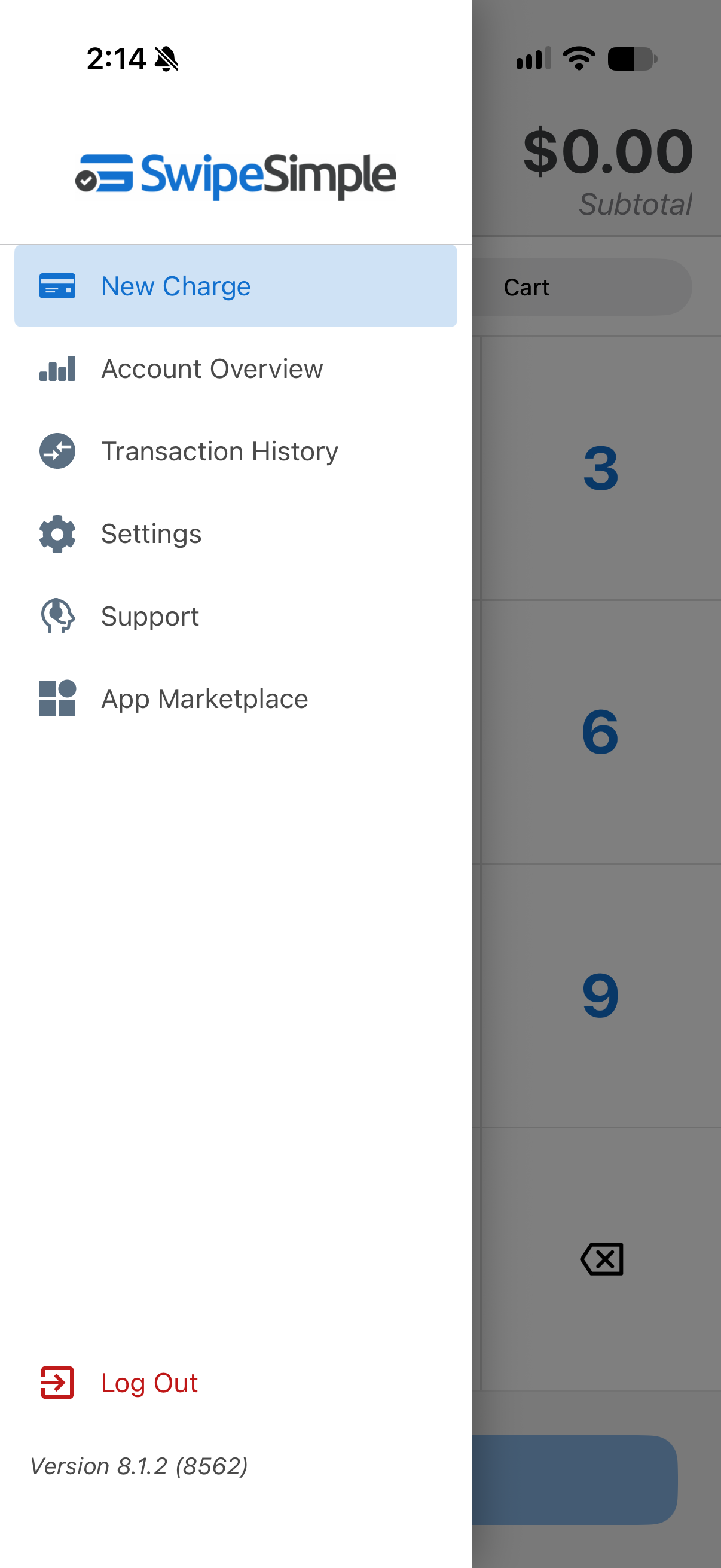
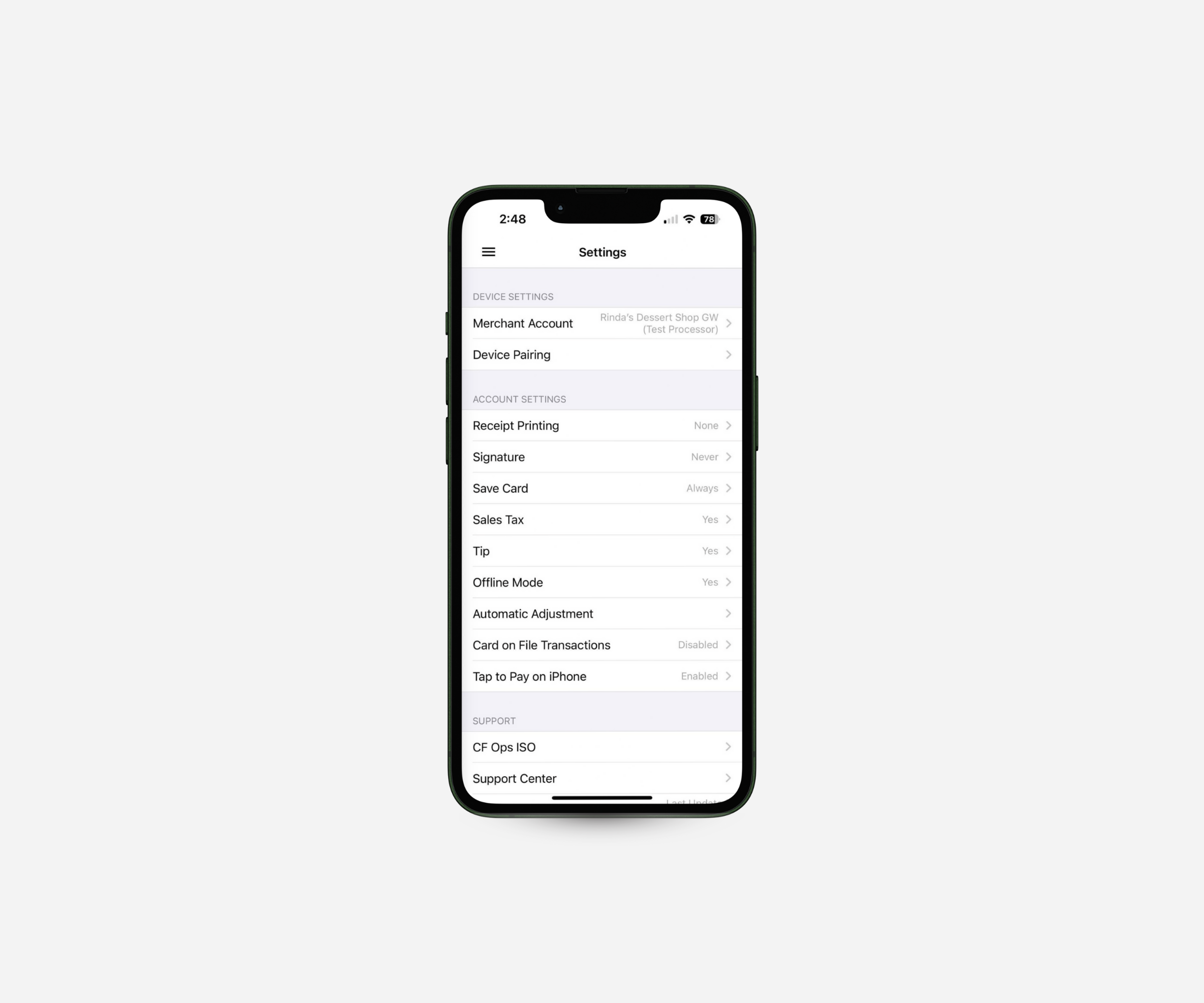
Device SettingsDevice Settings control how the app works on the device you are holding.
- Merchant Account: Switch between merchant accounts if your business uses more than one.
- Device Pairing: Pair your Bluetooth card reader with the app.
- Face ID: Turn on Face ID for quick, secure logins.
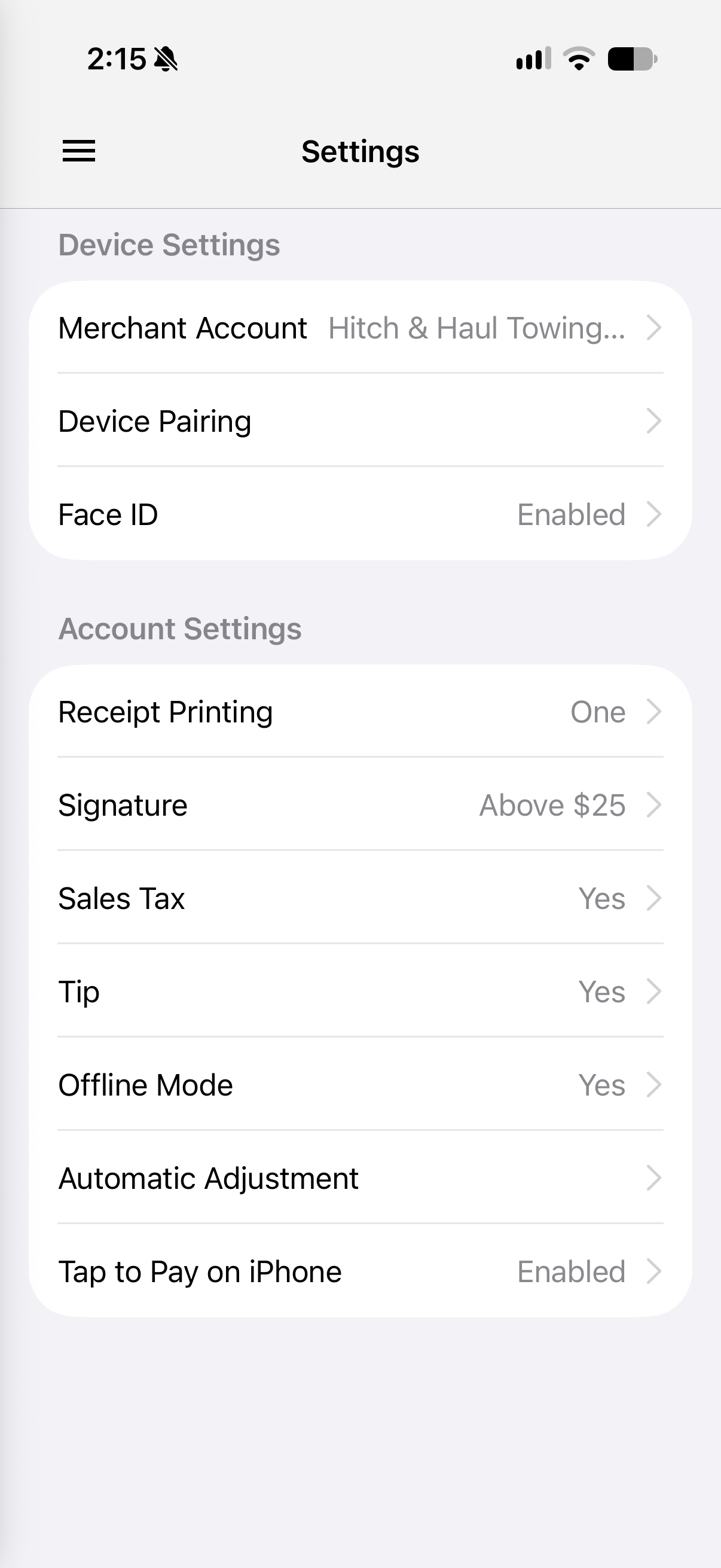
Account SettingsAccount Settings let you tailor checkout to your day-to-day needs.
- Receipt Printing: Choose how many receipts print after each sale.
- Signature: Choose when a customer signature is required, such as for sales above a set amount.
- Sales Tax: Turn sales tax on or off.
- Tip: Turn the tip prompt on or off.
- Offline Mode: Turn Offline Mode on or off.
- Tap to Pay on iPhone: Enable contactless payments directly on your iPhone. This option is available to merchants enrolled in Tap to Pay on iPhone.
Support
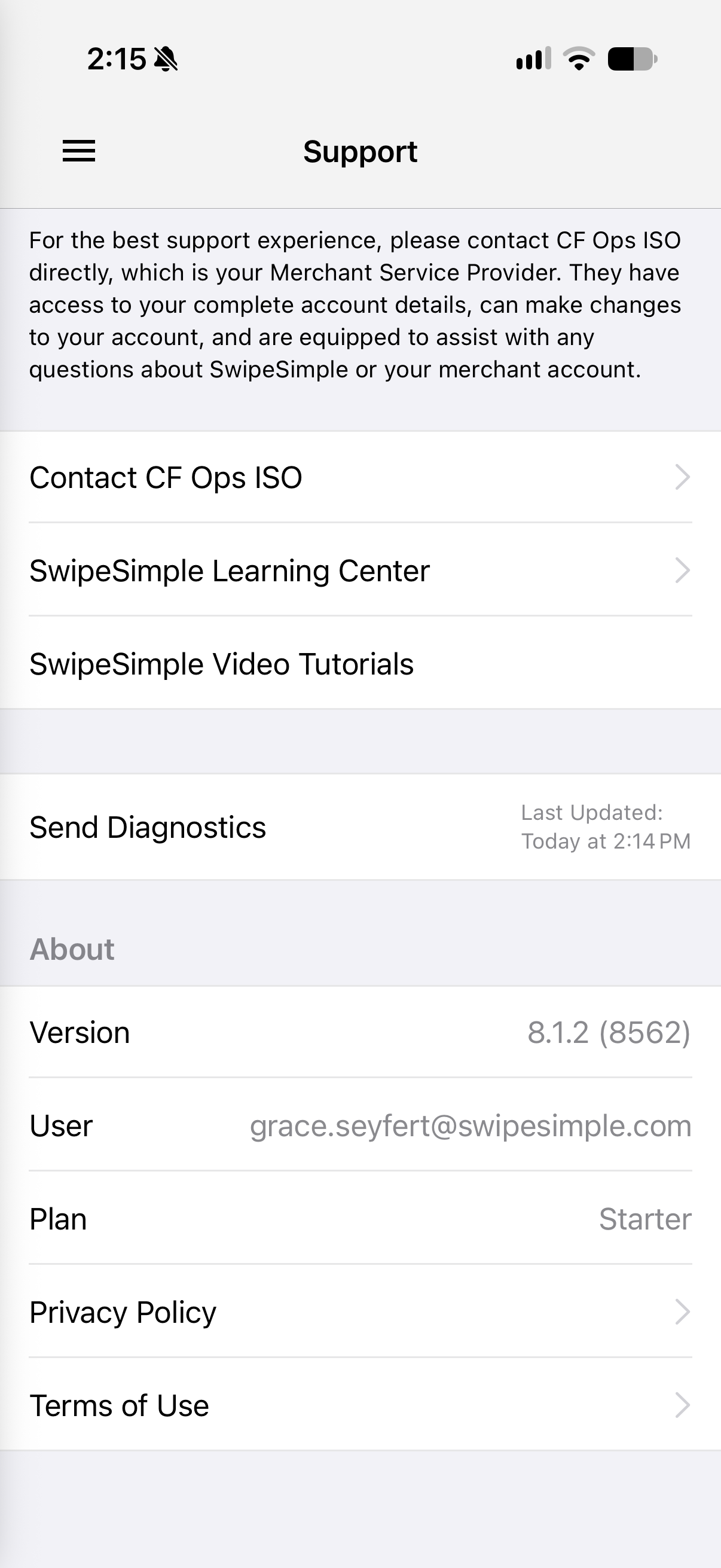
The Support section shows the contact information for your merchant service provider, so you know exactly where to turn if you need help with the app.
About
The About section shows your app version, the user currently logged in, and links to your agreements.
Related Articles

Processing Payments with SwipeSimple - Starter Plan
Learn how to process a payment in the SwipeSimple Mobile App in the Starter Plan, from entering an amount and editing the cart to accepting keyed, Tap to Pay on iPhone, and cash payments, adding tips, and sending receipts.
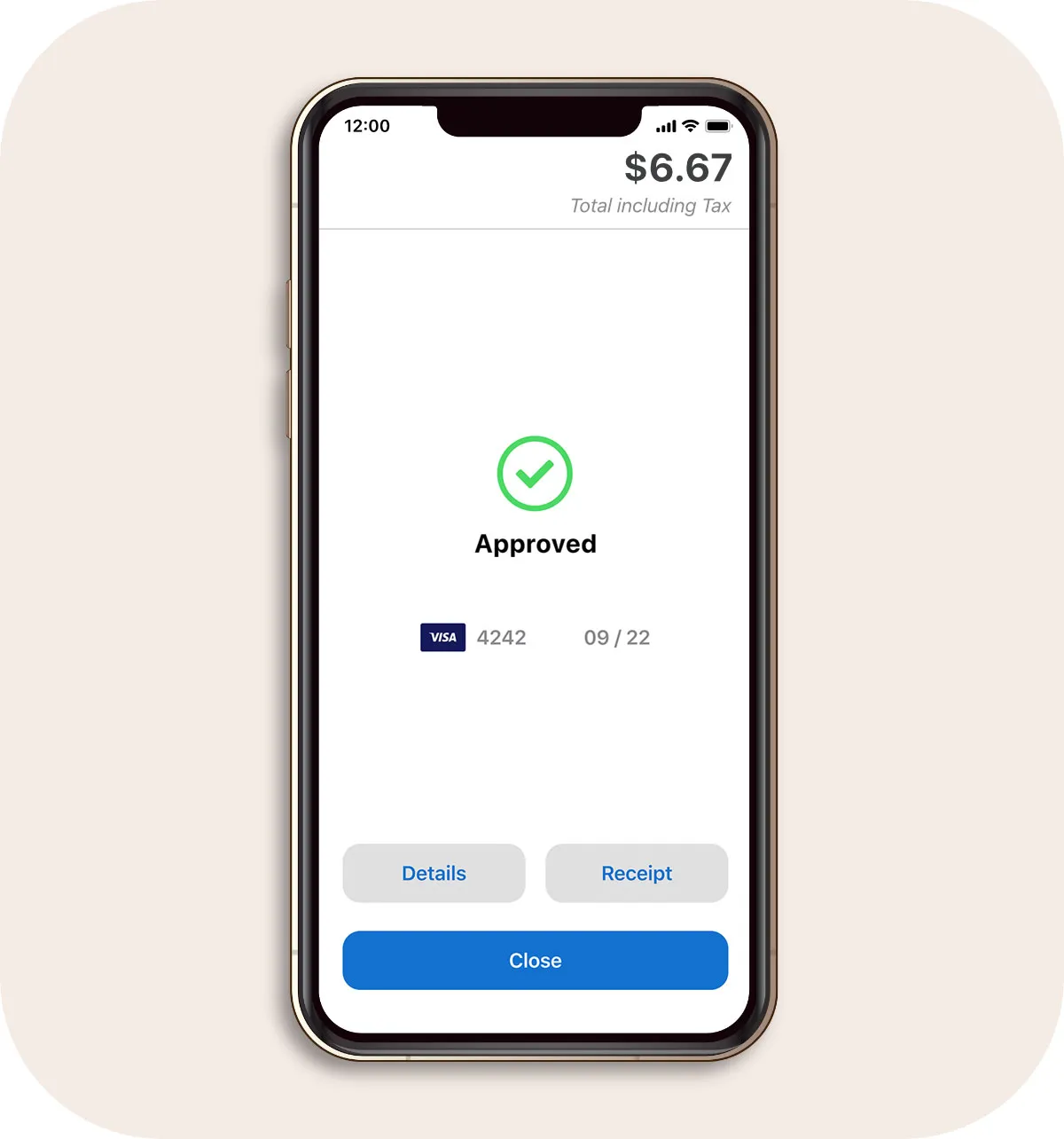
SwipeSimple Mobile App Navigation - Starter Plan
Navigating the SwipeSimple Mobile App - Starter Plan
Customizing Mobile App Settings
Adjust checkout options, enable Tap to Pay on iPhone, manage accounts, and access support—all from settings in the SwipeSimple app.

Issue Refunds, Void Transactions & Resend Receipts
Need to fix a payment or resend a receipt? The SwipeSimple app makes refunds, voids, and receipts simple to manage—right from your phone.

How to Use Invoices on Mobile
Send invoices right from your phone. SwipeSimple makes it easy to create, send, and track invoices on the go.

How to Navigate SwipeSimple - Mobile App & Web Dashboard
See how SwipeSimple makes it easy to manage payments and business tasks from anywhere—whether you’re on your phone or at your computer.
Processing Payments with SwipeSimple
Get a quick walkthrough of the SwipeSimple mobile app. Learn how to add items, apply discounts, take payments, and send receipts—all in just a few taps.