

SwipeSimple Mobile App Navigation - Starter Plan
Before getting started, confirm you're running the latest version of SwipeSimple. To check: open the SwipeSimple app, tap the menu icon (three horizontal lines), and look at the bottom left corner of the sidebar — your version number will appear there. If an update is available, you'll see a notification in the App Store or Google Play Store, or you can search for SwipeSimple and tap Update if it appears.
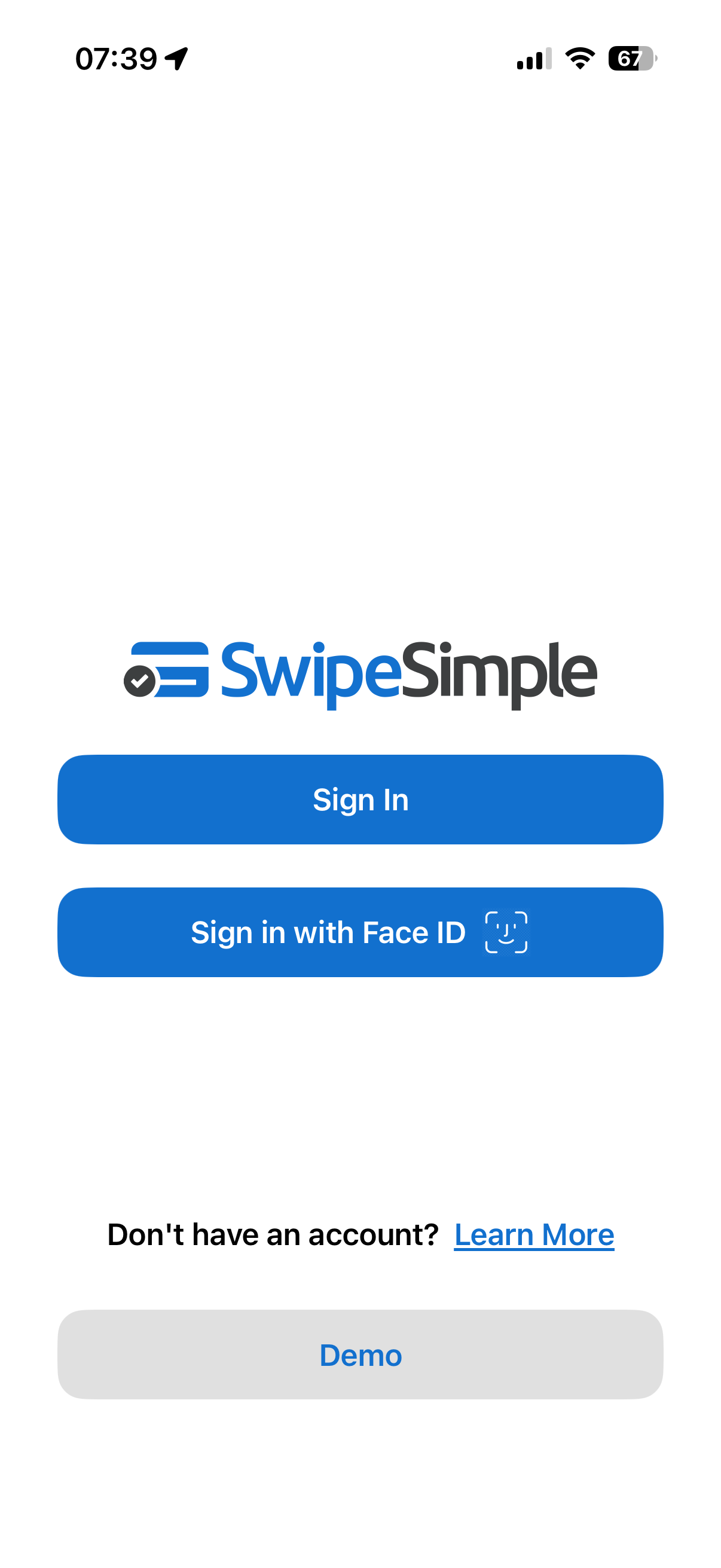
From the log in screen on the SwipeSimple Mobile App you will be presented with two options:
- Log into the SwipeSimple Mobile App with your email and password.
- Click into demo mode to begin a demonstration of the SwipeSimple Mobile App if you do not have an account yet (or for training purposes).
Logging into the SwipeSimple Mobile App
Using your credentials, log into the SwipeSimple Mobile App.
Once you've logged in, you'll be presented with the New Charge screen where you can enter an amount to quickly check out without needing to select an item from the catalog. You can tap on the tabs above the keypad for different options such as adding discounts if you have them configured. For more information on completing a transaction, click here.
To switch to another view tap the icon in the upper left hand side - this will open up sidebar menu with the following sections:
- New Charge
- Account Overview
- Transaction History
- Item Catalog
- Invoices
- Customers
- Settings
- Support
To navigate to one of these sections, tap the name in the menu.
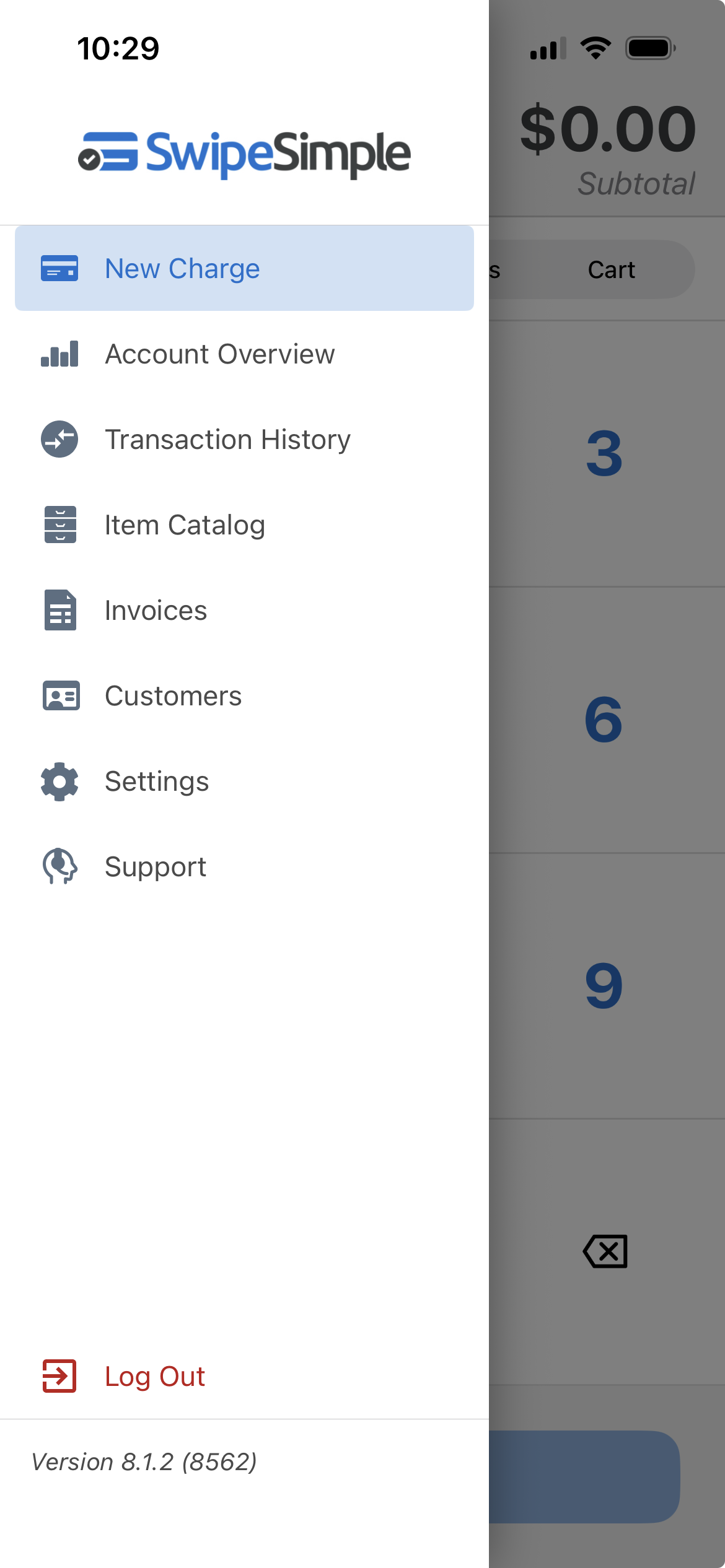
In addition to using the icon to open the menu, users can swipe from the left hand side to open the menu.
Using SwipeSimple Demo Mode
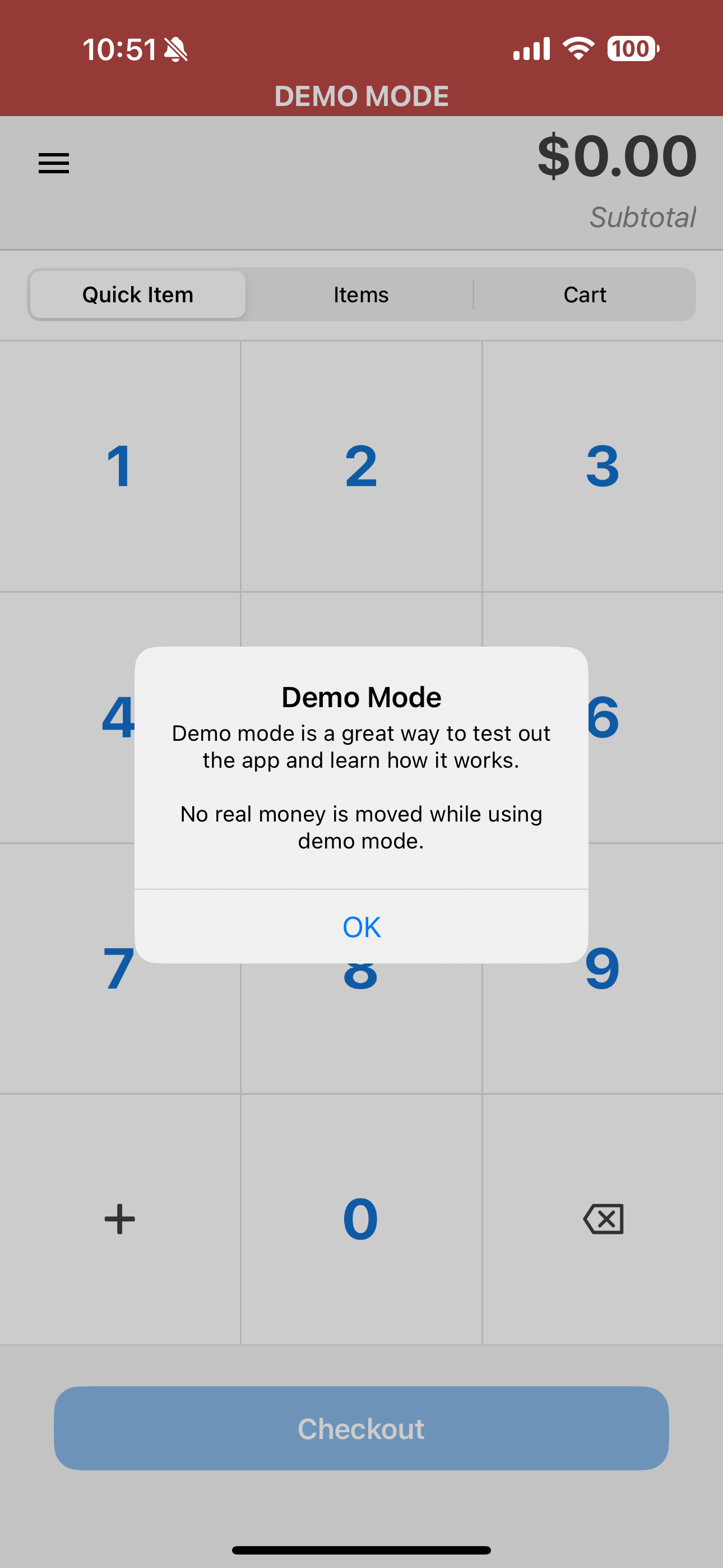
The SwipeSimple Mobile App has a demo mode feature to simulate the SwipeSimple mobile experience without actually processing transactions. Demo mode is a great way to train new users on all the features SwipeSimple has to offer.
Related Articles
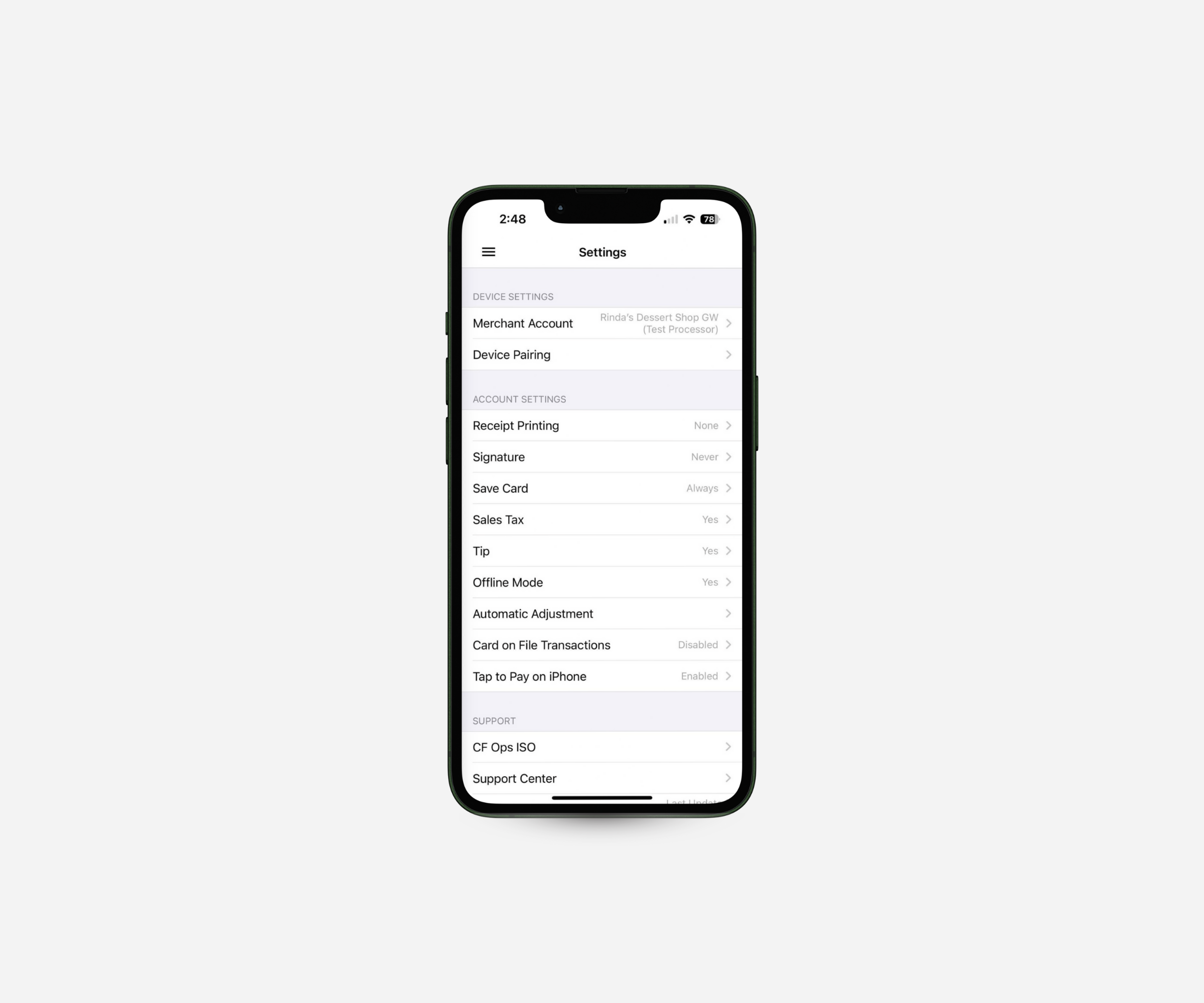
Customizing Mobile App Settings

Issue Refunds, Void Transactions & Resend Receipts

How to Use Invoices on Mobile

How to Navigate SwipeSimple - Mobile App & Web Dashboard





